Fix a headset mic that is not detected
Check hardware mute and device selection before changing drivers.
The short answer
A missing microphone can be a port, permission or routing issue. Test from the physical connection toward the application.
What to do
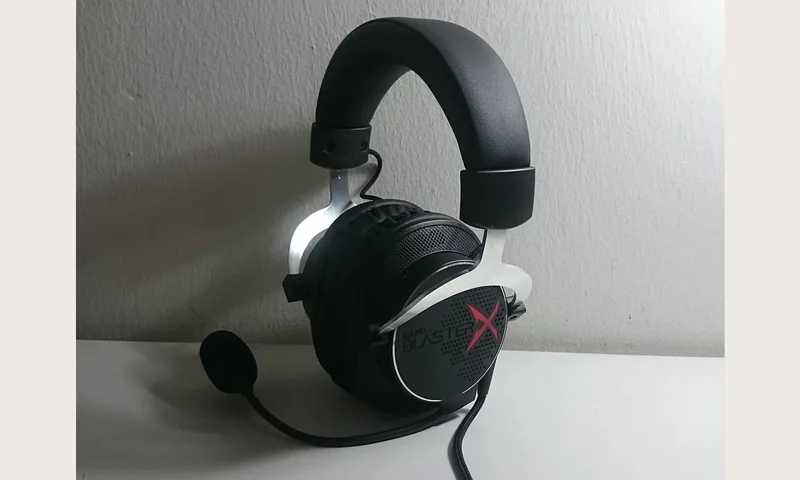
- Check the boom position, mute switch, detachable cable and correct socket. Reconnect at low headphone volume.
- Select the intended recording device in the operating system and confirm microphone permission for the app.
- Record locally, then test the game's input selector. Try the headset on a compatible second device if needed.
Classify the connection before changing drivers
A USB headset should appear as an audio device when connected. A 3.5 mm headset relies on the computer’s existing audio device and may not appear under its own product name. A four-contact headset plug combines headphones and microphone; separate desktop headphone and microphone sockets usually require the correct headset splitter. A headphone-only splitter duplicates output and does not provide a microphone input.
Check whether the operating system hears you
Confirm the physical mute switch is off and select the intended microphone in system input settings. Speak while watching the input meter. If the meter moves, the microphone is reaching the operating system and the next check is the app’s chosen input. If the meter does not move, reseat the connection, try another suitable port, and verify any adapter is wired for a headset microphone.
Separate device selection from permission
On Windows, check microphone access for the device and the app category you are using. A desktop application and a Microsoft Store app may have separate permission controls. In the game or voice app, explicitly select the tested input instead of relying on a default that may change when a webcam or controller is connected. Browser calls can also require site-level microphone permission.
Use a short recording to locate the fault
Record speech in a simple local recorder with the selected microphone. If that file is clear but teammates hear nothing, inspect push-to-talk, mute, input sensitivity and the app’s audio device. If no app receives a signal, test the headset on a compatible second device or test a known-working microphone on the original computer. This distinguishes a headset fault from a computer input fault without repeated driver reinstalls.
Check the result
A local recording separates a system-level problem from a game's settings.
Know the limits
Repeated driver reinstalls will not fix a wrong adapter or an unsupported console connection. Use the exact model's support instructions for compatibility questions.
Further reading
Sources for the connections and technical principles discussed above. The diagnostic sequences are our editorial explanation. Consult the manual for your exact model before changing hardware or settings.
These are general educational guides, not hands-on product reviews. How we prepare our content. Cover photo source & license.
Keep working on your setup
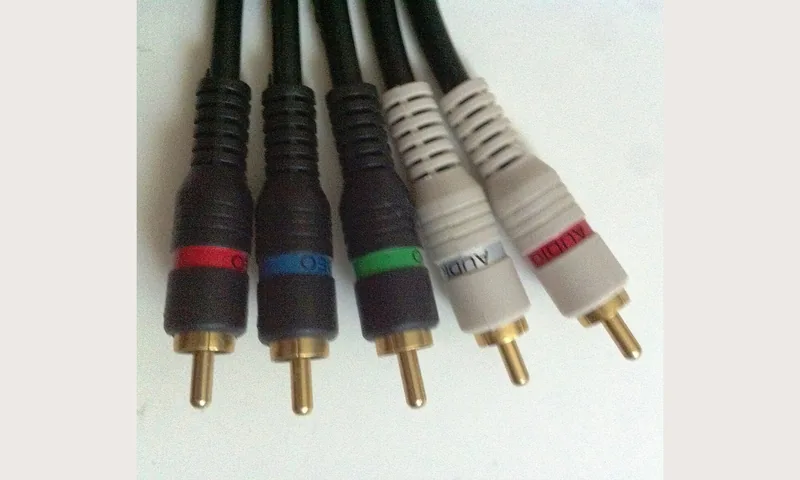
Use a headset with separate headphone and mic jacks
Match the plug wiring and connector functions.
Read the guide
Stop game audio leaking into voice chat
Find out whether the leak is acoustic or electronic.
Read the guide
Test a gaming microphone before a long session
Use the same app settings and room conditions as the session.
Read the guide