Check a headset mute button before changing software
Trace a silent microphone through physical mute and app mute controls.
The short answer
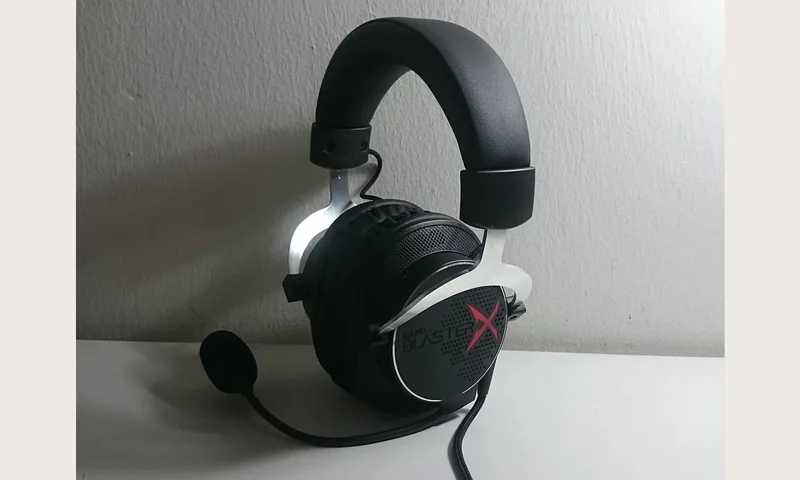
A headset may have a cable switch, a boom-up mute position, a wireless-base mute and an app mute. Work from the microphone towards the call so a hardware mute is not mistaken for a permissions failure.
What to do
- Identify the model's physical mute indicators
- Unmute the headset and speak into the operating-system input test
- Check the voice app's selected input and mute state
- Record ten seconds and listen back before joining a call
Read lights in context
An indicator can show battery state rather than mute, and some controls affect only the headset's own wireless connection. Check the model guide for the meaning of each light. If the system meter moves but the call is silent, focus on the app route and permissions instead of the capsule.
Check the result
The system test and voice-app test should both capture the same short phrase. Check that muting the physical control silences both.
Know the limits
Do not infer privacy from an unfamiliar indicator. Confirm mute behaviour with an actual recording, especially after firmware or software changes.
Further reading
Sources for the connections and technical principles discussed above. The diagnostic sequences are our editorial explanation. Consult the manual for your exact model before changing hardware or settings.
These are general educational guides, not hands-on product reviews. How we prepare our content. Cover photo source & license.
Keep working on your setup
Hear game chat when a controller becomes the default device
Recover chat after plugging in a controller without disrupting your speaker route.
Read the guideStop a game from selecting a monitor audio output
Keep HDMI display audio from taking over after a screen reconnect.
Read the guide
Check sidetone before blaming voice-chat echo
Tell local microphone monitoring apart from an echo heard by teammates.
Read the guide